 Codex Tracker for Windows 11
Always know how much Codex and Claude Code you have left
Codex Tracker puts your 5-hour and weekly usage limits in the Windows taskbar, tells you exactly when each one resets, and reminds you at the right time. No account, no server, nothing to configure.
Or let Codex install it for you. See how
- Version 1.0.5
- Windows 11 x64
- English, French, Spanish, German, Portuguese or Japanese
- MIT license
- Free
The simplest install: just ask Codex
Three ways to install, all free. The fastest is to let your coding agent do it.
Then
- Use Codex or Claude Code as usual. The signed-in account appears by itself; other accounts are added when you open them.
- Keep the icon visible by dragging it out of the taskbar’s ^ overflow.
Codex Tracker in pictures
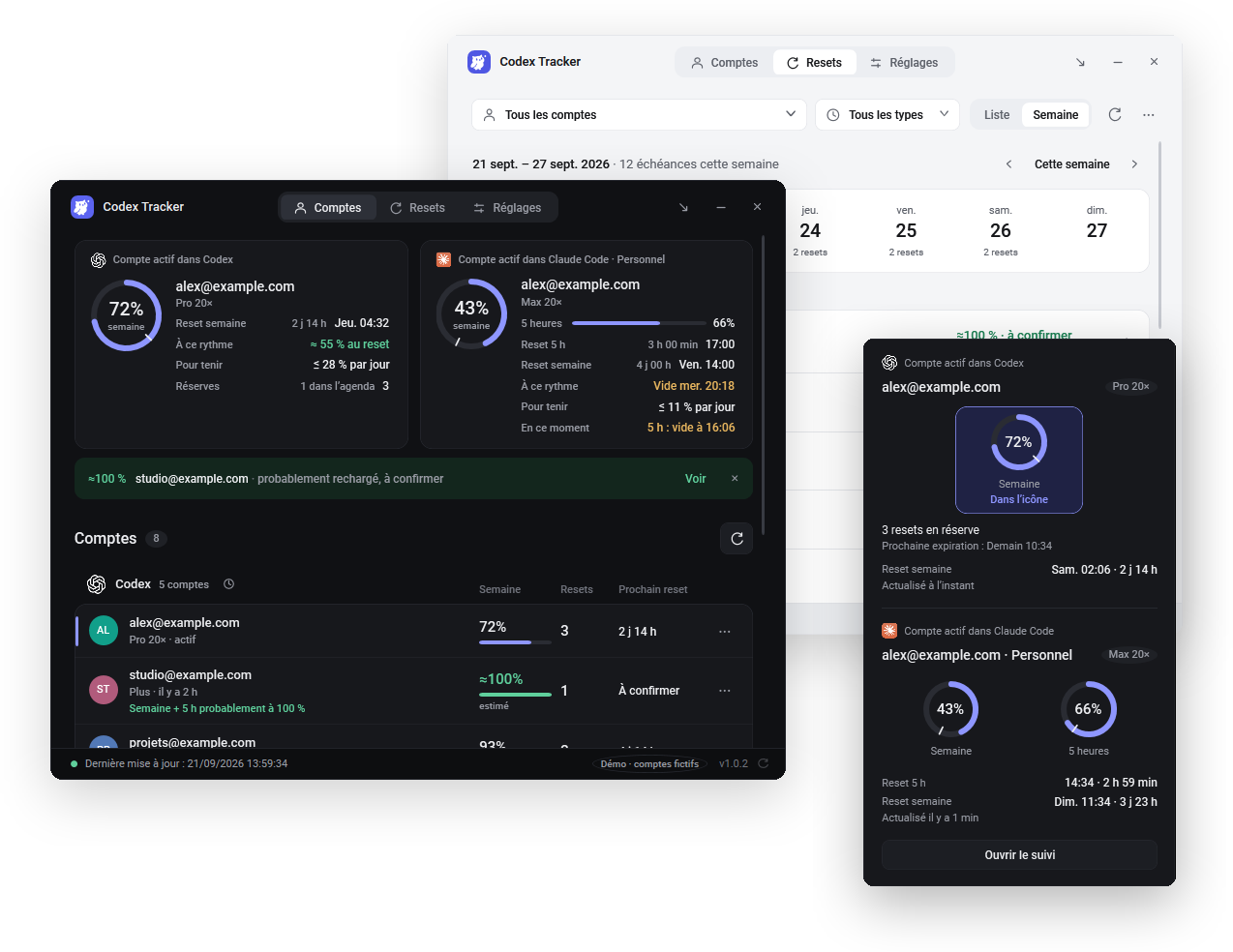
Codex and Claude Code limits, made visible
OpenAI Codex and Anthropic’s Claude Code cap your usage twice: a limit over 5 hours and another over the week. Once it runs out you wait for the refill, and neither tool tells you clearly where you stand across several accounts. Codex Tracker answers three questions at a glance.
How much is left?
The remaining percentage is drawn in the taskbar icon. Hover it for both limits of the active account.
When does it reset?
The exact reset time of every limit, for every account, as a list or on a week calendar.
Which account should I use?
All your Codex and Claude Code accounts side by side, personal and work, each with the date of its last reading.
A quick tour
Accounts, the week of resets, reminders, the light theme and assistants, in twelve seconds. Demo accounts only.
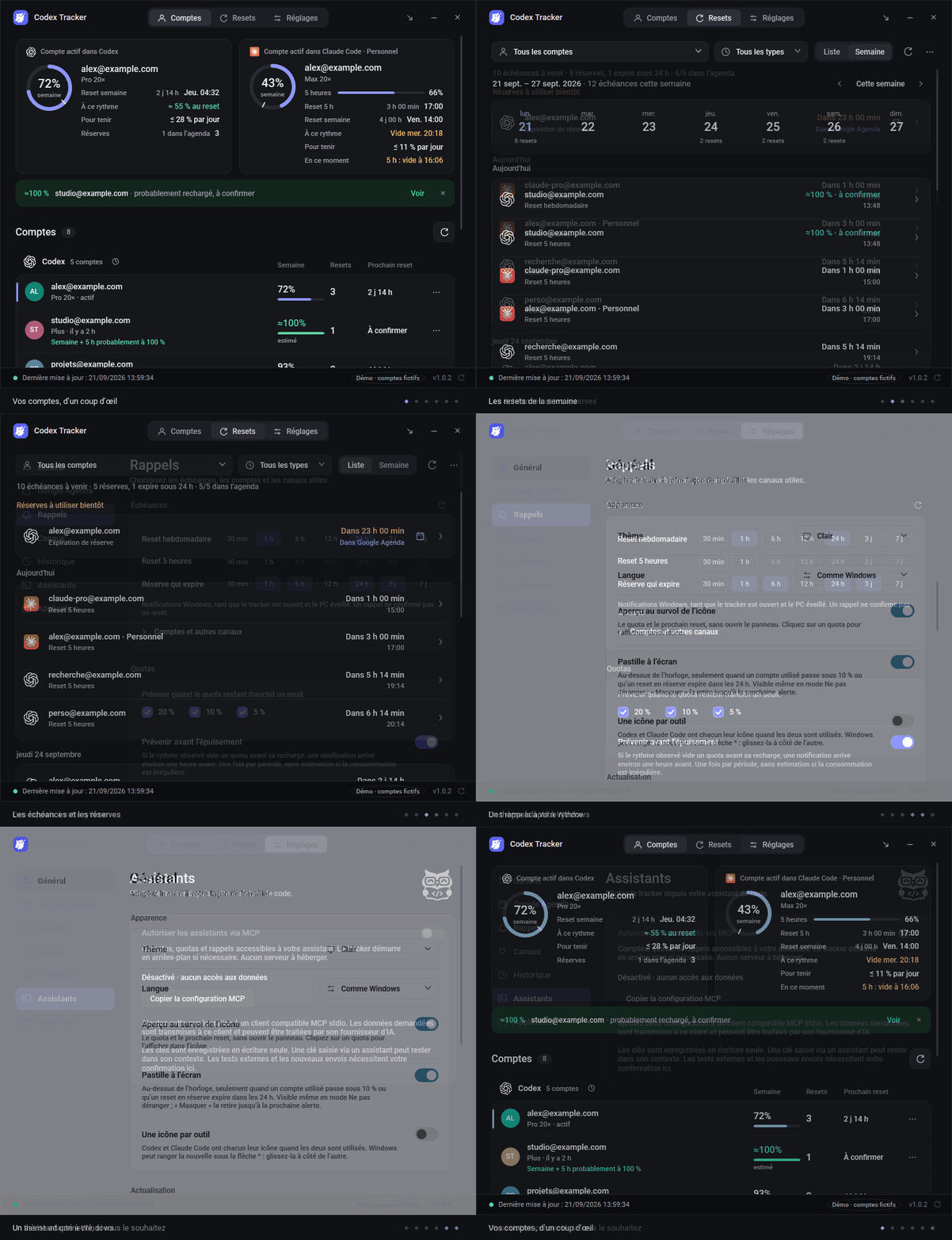
Everything about your quotas, nothing else
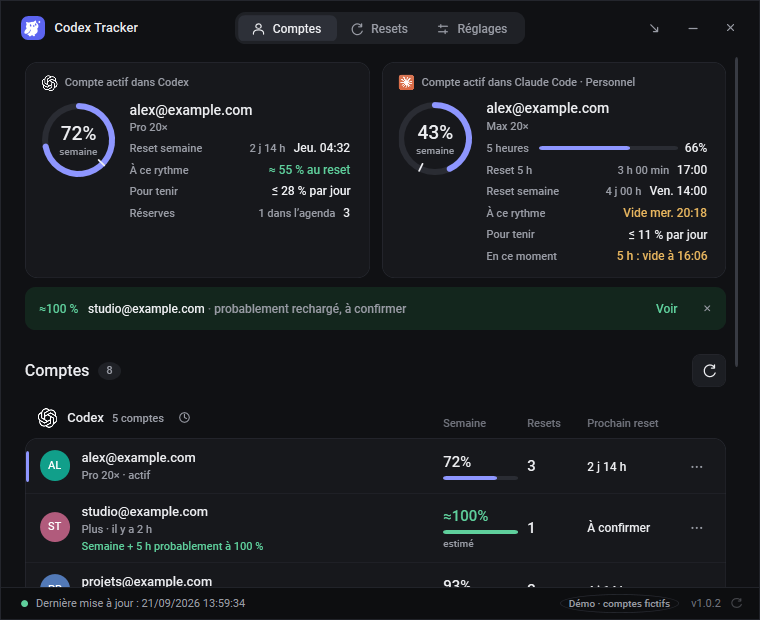
Your accounts at a glance
A ring for the active account, a bar for the others, and the age of every reading. Inactive accounts keep their last value; once their reset time passes they show as “probably refilled”.
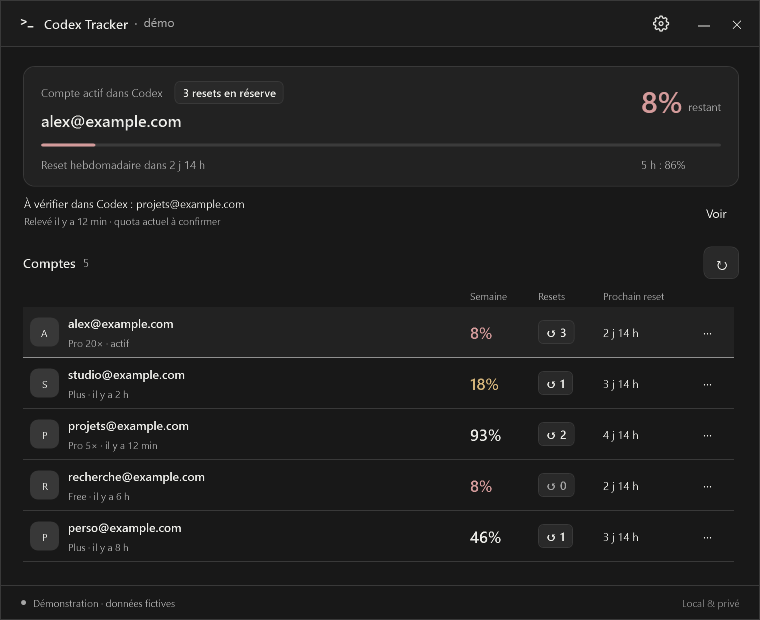
Told which account to switch to
When the account you use is at 10 % or less, alerts and the tray tooltip name another account of the same tool with at least 30 % left and 20 points more. It never switches accounts for you.
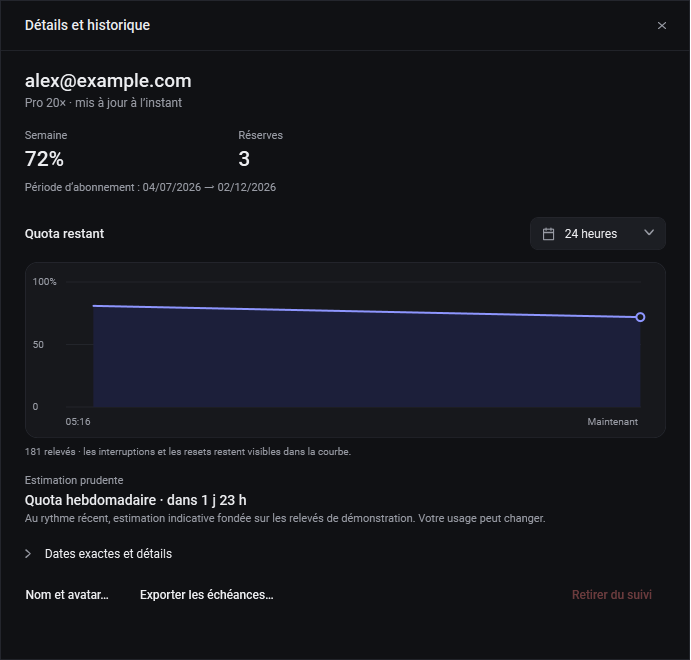
Details and history
Each account keeps up to 90 days of local readings. See its remaining quota over 24 hours or 7 days, its banked resets, its subscription period and a cautious estimate of when it runs out at the recent pace.
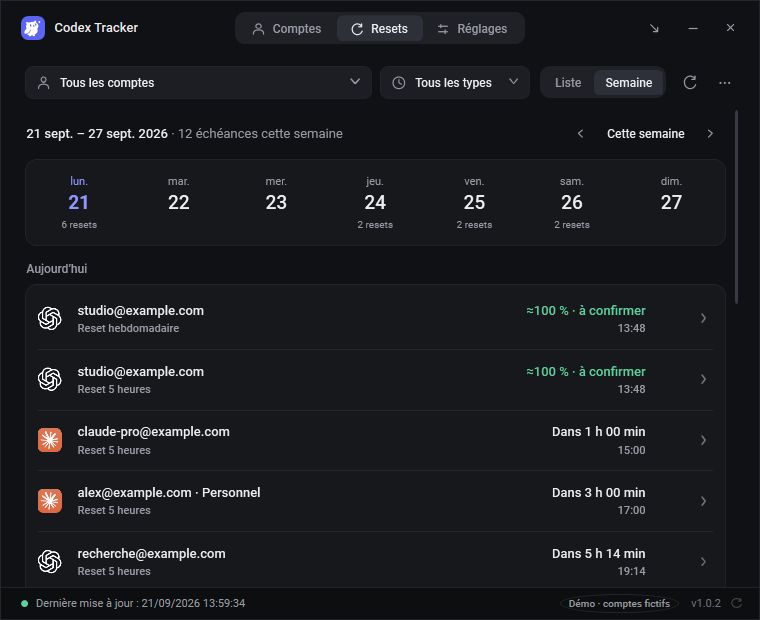
Reset calendar and banked credits
Upcoming resets day by day, plus your Codex reset credits with their expiry. Get notified when a new credit arrives, and advised to use one before it expires unused.
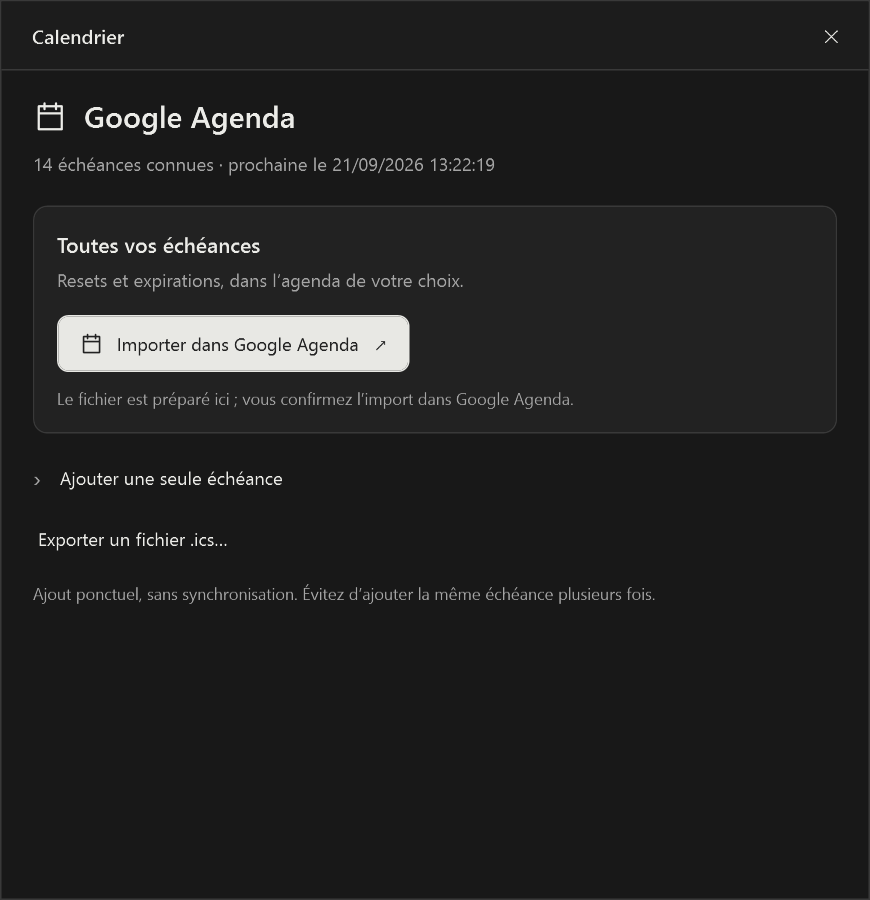
Google Calendar and Gmail, in one click
Connect Google Calendar and every banked reset lands in your calendar with reminders, removed once you use it. An email from your own Gmail the day before a credit expires.
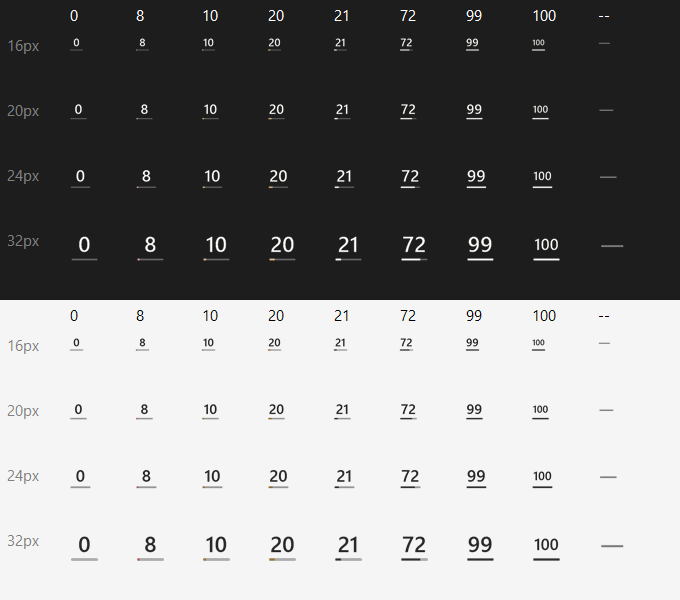
Readable at any taskbar size
The percentage and its thin gauge are drawn at the exact pixel size of your taskbar icon, light or dark. Hover it for a preview, and click a quota there to show it in the icon. Using both tools? Show one icon per tool.
Reminders where you will see them
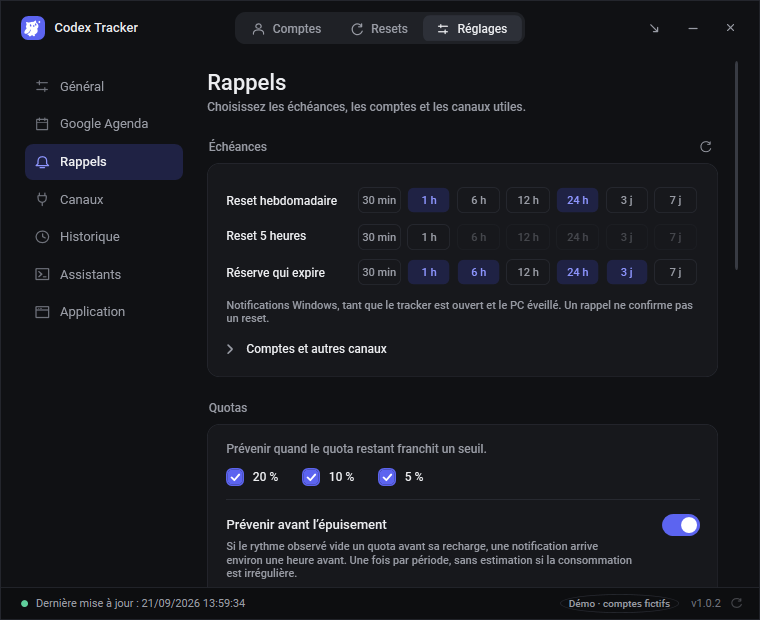
Windows notifications by default. Add your phone, a pill above the clock, or texts and calls when you want them.
- Before a reset
- Below 20, 10 or 5 %
- Before you run out
- When another account may have refilled
- When a new reset credit arrives
Windows notifications
On by default. Turn on the bell next to a reset time to be notified at the moment you choose.
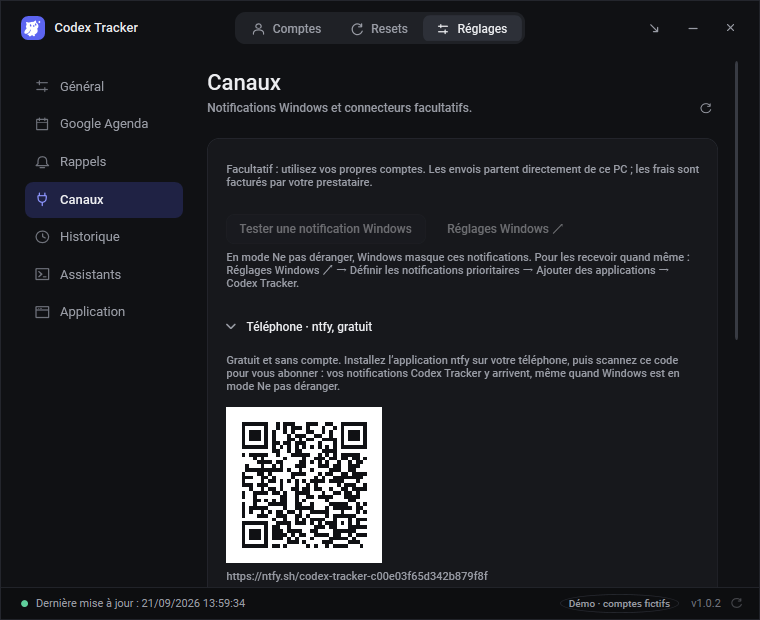
On your phone, free, with ntfy
Scan a QR code with the ntfy app, no account needed. Every Windows notification is copied to your phone, even when Windows is in Do Not Disturb.
A pill above the clock
Only while an account you use is at 10 % or less or a reset credit expires within 24 hours. It stays visible in Do Not Disturb, hides over full-screen apps and names the account to switch to.
Text, call or email
Optional, with your own Twilio or SendGrid account. Each service bills you directly at its own prices.
For coding agents
A local MCP server, off by default, lets your coding agent read quotas, plan around resets and change settings, with local confirmation for anything external. The same commands work on the command line, with JSON output.
- Which accounts still have weekly quota left? Say how old the data is.
- Which resets are coming in the next three days?
- Turn on Windows reminders one hour before weekly resets.
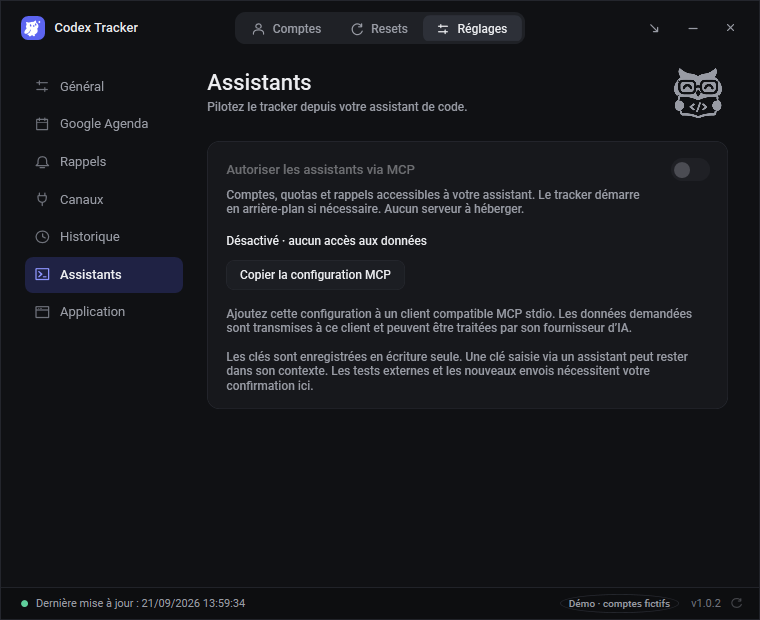
MCP client configuration
{
  "mcpServers": {
    "codex_tracker": {
      "command": "C:\\Users\\Example\\AppData\\Local\\Programs\\CodexTracker\\CodexTracker.exe",
      "args": ["--mcp"]
    }
  }
}
Settings → Assistants copies this configuration with the real path.
Command line
> CodexTracker.exe --cli list_resets
> CodexTracker.exe --cli get_status
> CodexTracker.exe --cli help
Your data stays on your PC
No sign-up, no server
Everything is stored locally. Optional secrets are encrypted with Windows DPAPI.
No password asked
It reads the quotas Codex and Claude already know. Never your conversations, never switches accounts for you.
Few, chosen connections
Update checks on GitHub and public reset announcements, both optional. Google only if you connect it.
Why not just check the usage page?
| Codex Tracker | Built-in usage pages | |
|---|---|---|
| Always visible | Percentage in the taskbar | Open a page or run a command |
| Several accounts | Side by side, Codex and Claude Code | One signed-in account at a time |
| Reset reminders | Windows, phone, Google Calendar, email, SMS | None |
| Banked reset credits | Expiry, alerts and “use it now” advice | Listed only |
| Agent access | Local MCP server and command line | None |
Frequently asked questions
Something else? Ask on GitHub.
How do I see how much Codex usage I have left?
Install Codex Tracker on Windows and keep using Codex as usual. The tray icon shows the remaining percentage of the active account; hover it for the 5-hour and weekly limits and the next reset time.
When does my Codex weekly limit reset?
Each Codex account has its own reset time. Codex Tracker reads it from Codex itself and shows the exact date and hour for every account, in a list or a week view, with an optional reminder.
Does it work with Claude Code?
Yes. The Claude desktop app is detected automatically. For Claude Code in a terminal, copy the status line setting offered in Settings → General → Claude Code.
What are Codex reset credits?
Codex can grant banked reset credits that refill a limit on demand and expire after a while. Codex Tracker lists them with their expiry, notifies you when a new one arrives, can add it to Google Calendar and advises using one before it is wasted.
Why is only the open account updated?
The tracker reads the active account in Codex and in Claude. Other accounts keep their last dated reading until you open them again.
Does it need to stay open?
For reminders, yes: it sits quietly in the taskbar and can start with Windows. The PC must be on.
Is Codex Tracker free and private?
Yes. It is free and open source (MIT). There is no sign-up and no server: it reads the quotas Codex and Claude already know on your PC, never your conversations or passwords. Only optional SMS, calls and SendGrid emails go through your own provider accounts and their prices.
Is it affiliated with OpenAI or Anthropic?
No. Codex Tracker is an independent project. Codex and Claude are trademarks of their respective owners.
Understand the limits
How each limit works, where to see what is left and what to do when you run out, checked against the official OpenAI and Anthropic documentation.
Keep your limits in view
Free for Windows 11, in six languages, MIT license. No account and no server. Light or dark like Windows, starts with Windows and updates itself.